Monday, February 22, 2010
Learn sharing Internet connection in Windows XP
Here is how to share your Internet connection in a way that other computers to be able to use it. The popular way of doing this is by using a hardware router or a combination of a proxy server and a hub. In the article I'll show how to easily share your connection with the Windows XP integrated Internet Connection Sharing.
The alternatives:
Hardware router
Pros: - once turned on the device provides Internet connection.
Cons: - set up, price.
Hub
Pros: - price, allows proper connectivity and data transfer between several computers.
Cons: - doesn't support network address translation(NAT).
+
Proxy server
Pros: - emulates hardware router functionality and gives IP address and port to the clients to provide Internet connectivity.
Cons:
- every client needs to use the Proxy server address
- network connection protocols are not being fully supported
What you'll need:
- one additional network(LAN) card, which will act as an outgoing Internet device
- (optionally) hub, if you are willing to share you Internet with more than one computer
Let's begin
Server setup
First off you'll have to know whether you've been using:
Dial up type of connection (PPPoE) providing a username and password or you are directly connected to your provider(ADSL...) without having to enter username and password every time prior using the Internet.
Open up Start->Settings->Network Connections to see your network cards(LAN).
Important!
If you are using ADSL find the incoming Internet connection card(i.e through which the Internet comes in) and right click -> Properties(fig. 1)
If you are using LAN + Dial up find your Dial up connection(and not the LAN card) and right click -> Properties(fig. 2)

Fig.1 ADSL

Fig 2. LAN + Dial up
On the next screen check the Allow other network users to connect through this computer's Internet connection.

Then you'll be prompted to allow the ICS to change your second(inner) LAN card settings.
From now on it'll have IP 192.168.0.1 and will serve dynamic IP addresses via DCHP to the connected computers(clients).
Other computers setup(clients)
The only thing left to do is to go to Start->Settings->Network Connections, right click on the network card Properties -> Internet Protocol(TCP/IP) - then again on Properties.
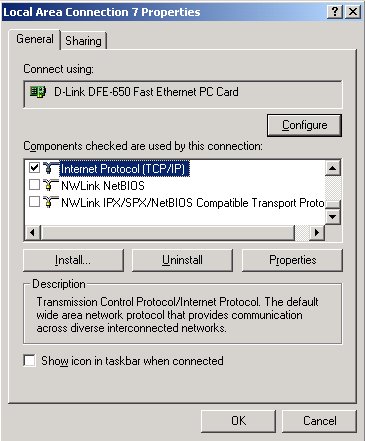
...and check both as shown automatically
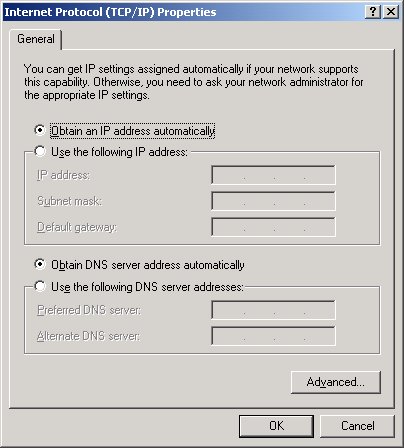
Don't forget!
Protect the shared connection
When all of your computers already have Internet it is important to turn on the integrated Windows firewall:
from Start->Run->Firewall.cpl
and then check both: On(recommended) and Don't allow exceptions
Now you are ready. Happy surfing!!!


No comments:
Post a Comment